Tutorial Header: Setting Up the Report, Tutorial Image: , Tutorial Content:
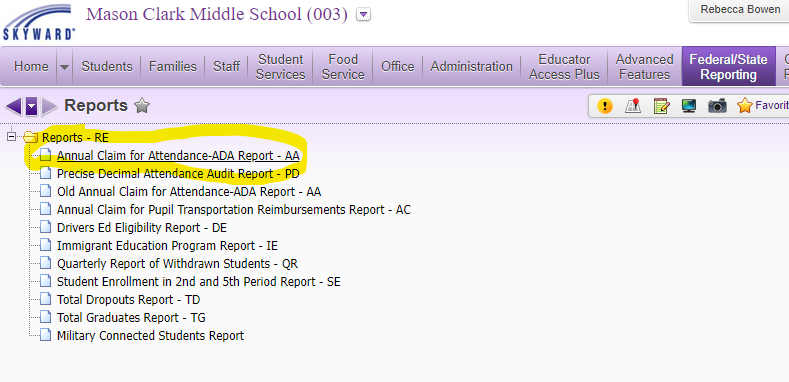
While in your entity, click on FEDERAL/ STATE REPORTING and then select REPORTS under ILLINOIS STATE REPORTING. Once there, select the ANNUAL CLAIM FOR ATTENDANCE - ADA Report.
To create a new template, use the two linked files to the right entitled "Average Daily Attendance PT 1" and "Average Daily Attendance PT 2" to see step by step instructions for how to set up the report.
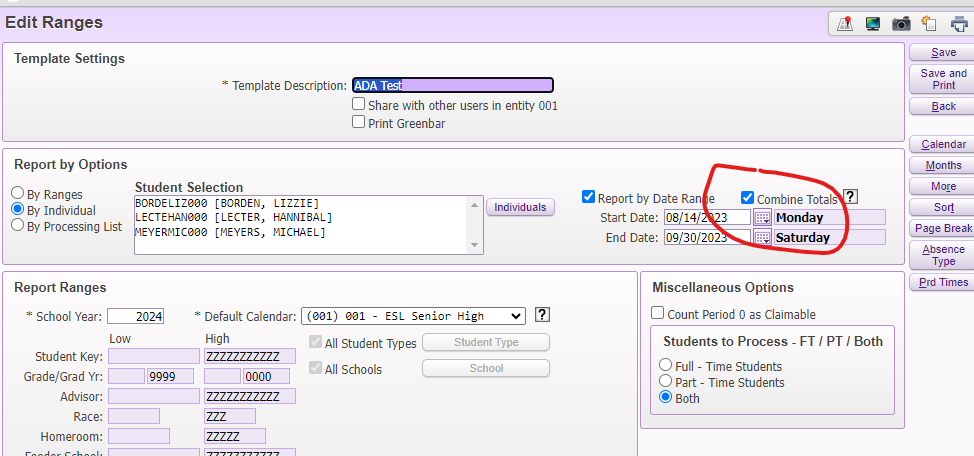
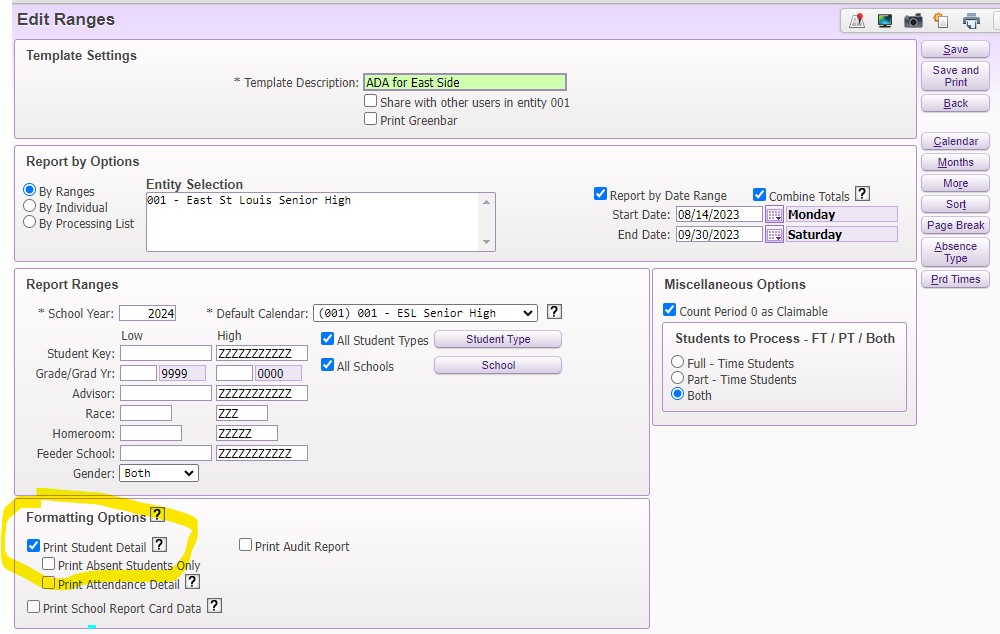
If you have previously set up a template, you may highlight the template name, select EDIT, and make any needed updates. This is recommended for running attendance for a specified date range. For example, if you want to check the attendance rates for the month of September, you would set the dates from 9/1/202X through 9/30/202X.
When setting up your ADA template, if you select the option to PRINT STUDENT DETAIL, you will get all relevant attendance data for your students for the specified time period.
The ADA report will have 3 different sections as follows:
Section 1 will give you days possible, days absent (excused & unexcused), and an attendance percentage for each student.
Section 2 will give you the names of students identified as CHRONIC TRUANT based on having 5% or more of their possible days as Unexcused Absences.
Section 3 will give you the names of students identified as CHRONIC ABSENTEE based on having 10% or more of their possible days as absent. For Chronic Absenteeism, all absences apply, including unexcused absences, excused absences, and out-of-school suspensions.
The AVERAGE DAILY ATTENDANCE for a school can be run for a date range, specific students, or a specific calendar. This calculation represents the total number of school days that students have been present divided by the total number of school days possible for all students.
Updating attendance must be done in your school's specific entity and cannot be done in 000. On the Student Management side, select the STUDENTS button and then click Student Profile - SP. Type in the first 5 letters of the student's last name and then the first 3 letters of the student's first name. Select the appropriate student.
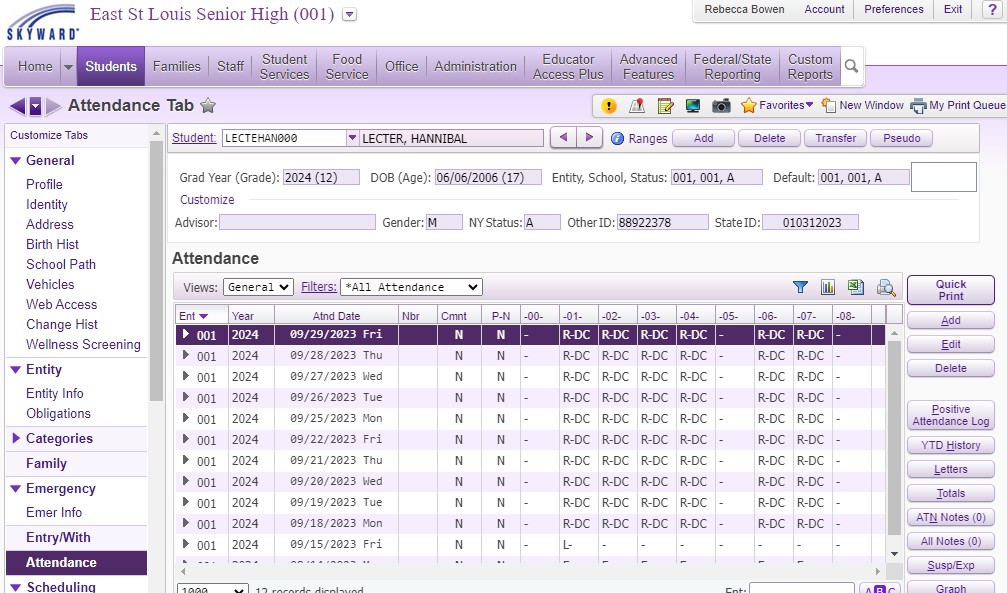
Once you have pulled up the correct student's profile, find the ATTENDANCE tab to the left and click on it. You will see all the attendance records thus far for the current school year.
If you need to update an existing attendance record, highlight the appropriate date and select the EDIT button to the right. This might be done when a teacher has marked the student absent (W - an unexcused absence) but you now have documentation that it was an excused absences and need to update the data.
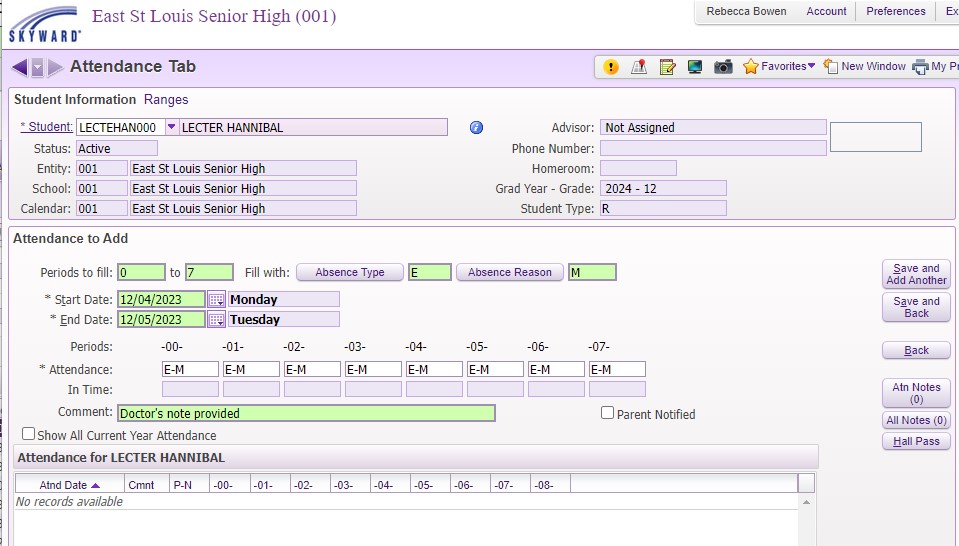
If there is no record for the date, simply select the ADD button to the right and then follow these steps.
Put in the start and end dates, as appropriate. This may be a single day.
Put in the periods you are updating. For secondary, this will typically be periods 0 to 7; for elementary, this will be periods 0 to 2.
You may enter a comment into the comment box, if desired.
Select the ABSENCE TYPE that is needed.
Select the ABSENCE REASON that is needed and then SAVE the entry.
You will see a popup screen that asks if you want to input IN/ OUT times. This is not typically done and you can select "no" to return to the attendance screen for the student.
It may be possible that office staff will need to update attendance for a single day or a period of time for a student. This can be done on the Student Management side of Skyward.
Tutorial Header: Average Daily Attendance Report in Skyward, Tutorial Image: , Tutorial Content:
The first step to identifying the Chronic Truants and Chronic Absentees in your building is to run an Average Daily Attendance report in Skyward. Follow the link below to review setting up the template.
When trying to identify your Chronic Truants and Chronic Absentees, it is recommended that you always use the first day of school up as the start date and yesterday's date as the end date.
Be sure to select the option to COMBINE TOTALS in your template.
, Tutorial Link URL: https://estl189.qbase-online.com/knowledge-base/21-skyward/53-average-daily-attendance, Tutorial Link Title: AVERAGE DAILY ATTENDANCE REPORT Tutorial
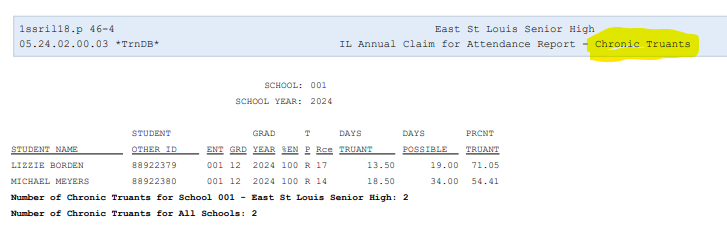
After running the ADA report, you will want to move to Section 2 of the report. The heading will state CHRONIC TRUANTS and individual students identified as a Chronic Truant will be listed.
The truancy rate will be the last data element for each student. All unexcused days are flagged as truant and will count towards the student's truancy rate.
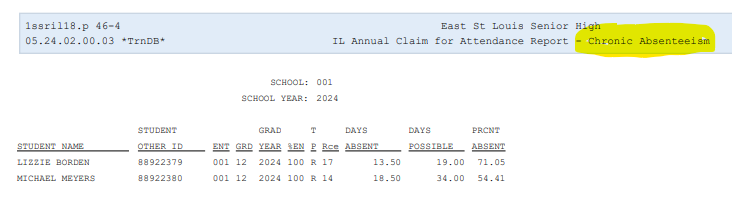
After running the ADA report, you will want to move to Section 3 of the report. The heading will state CHRONIC ABSENTEEISM and individual students identified as a Chronic Absentee will be listed.
The Percent of Attendance will be the last data element for each student. All absences count toward this metric and will be calculated in the student's attendance percentage.
Regular attendance to school is important for students to improve outcomes as they grow and learn. There are two different attendance metrics used to identify students and families who made need additional supports to reach their potential.
CHRONIC TRUANT: a student is identified as a Chronic...
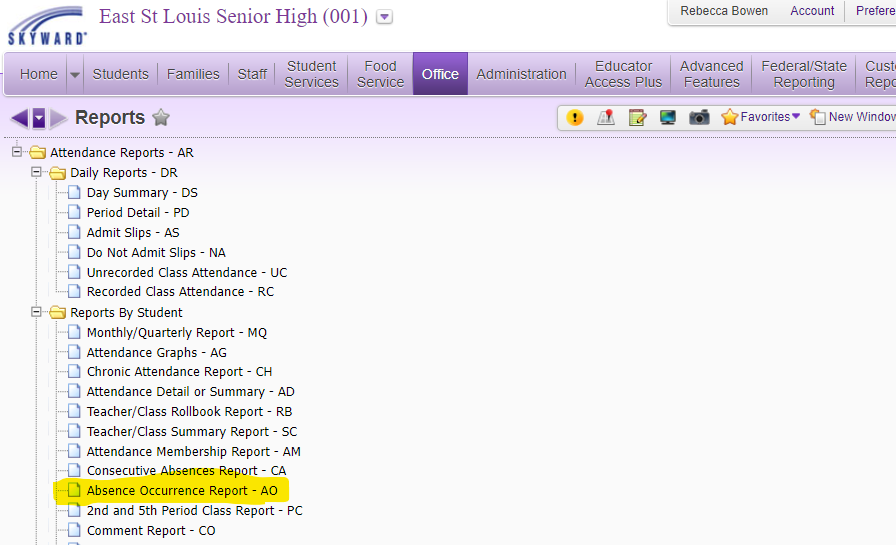
To access this report in Skyward, you must be in your specific entity (not 000). Once you are there, travel to Office -> Attendance -> Reports -> Absence Occurrence Report AO.
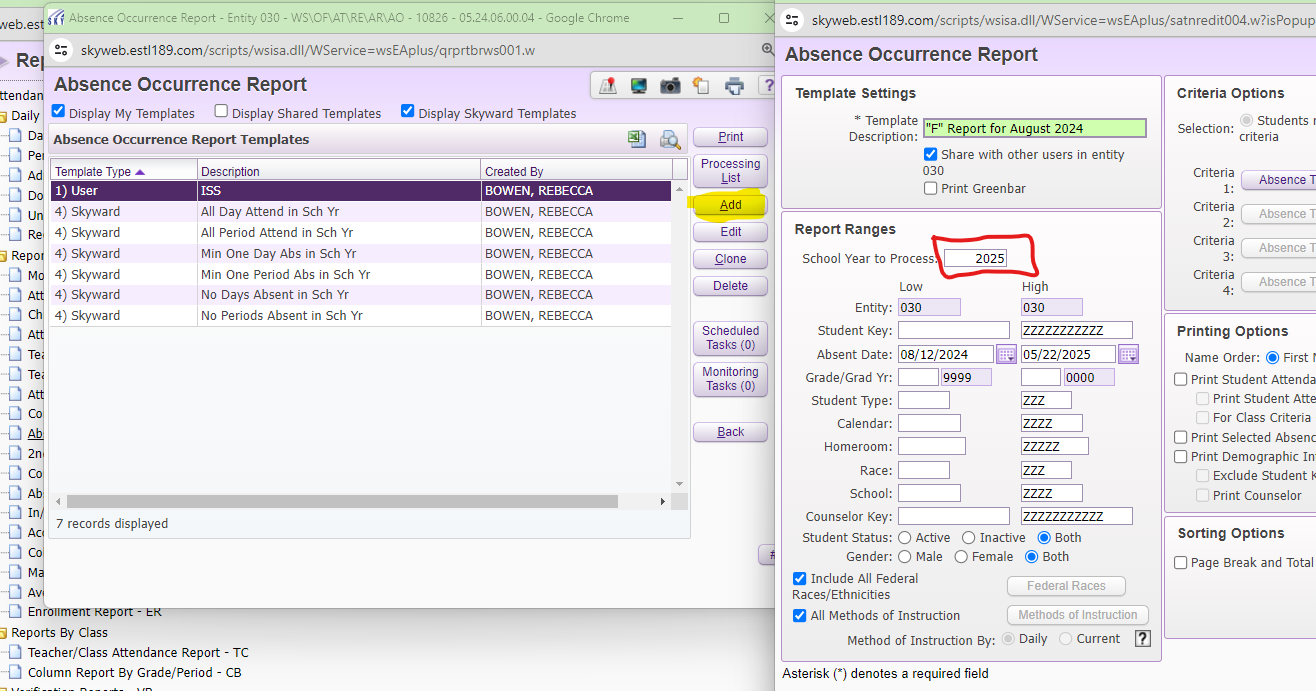
Once you get into the Absence Occurrence Report area, you will create a new template or edit your existing template. If assistance is needed, you can also request support from the district office to get a report set up for you and then clone it.
To create a new report, select the ADD button to the right, give your template a name, and confirm it is for the current school year.
The default will be for dates for the entire school year. When running this report at the start of the school year, this will be changed to one single day.
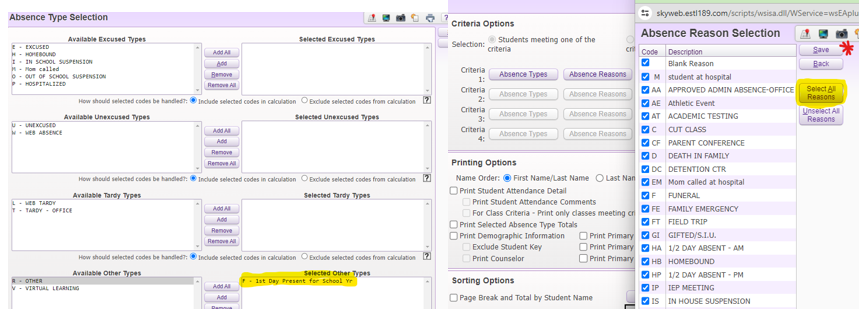
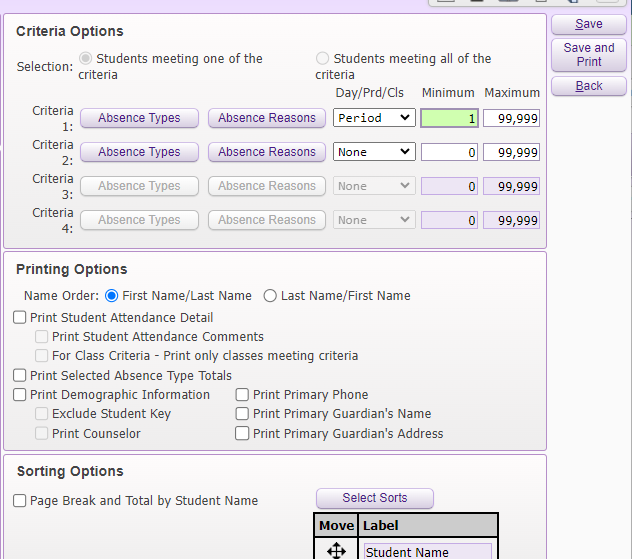
The first thing to do to set up your report is to define the Absence Type and Absence Reasons that will be used. Since this report is looking for any students marked with an "F" for First Day, the Criteria Options will be very limited.
For Absence Types, the one selection will be the F - 1st Day Present for School Yr option. Highlight that at the bottom and click the ADD button. Be sure to hit SAVE.
Teachers cannot input absences reasons but other staff members with access may have updated a student's record. To be certain all possibilities are available, click on the Absence Reasons button, SELECT ALL REASONS, and then SAVE.
Because you are only looking for students marked with an "F" for a specific day, change the Minimum field to a "1". This will ensure only students marked with an "F" in one of their periods is shown on the report.
The picture here shows that we are looking at each student by period and pulling the names of all those students marked with an "F for a specific date.
The default for this report will be to sort printed students by name. You can select how you want names to print with either the first name or last name listed first.
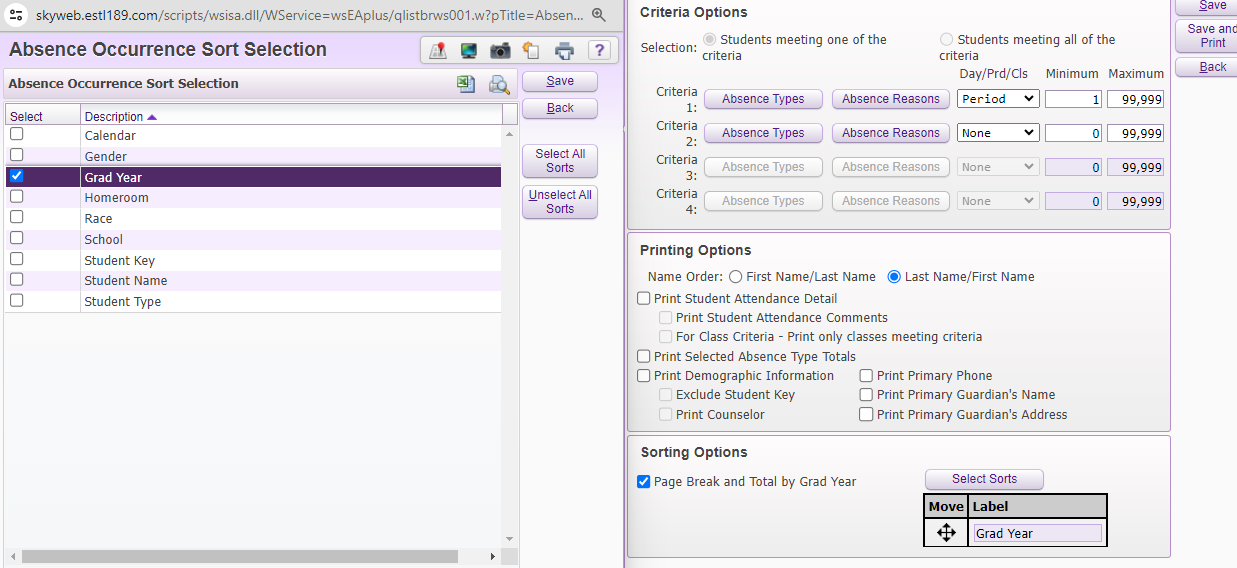
If you wish to sort students for your report by some other criteria, choose the Select Sorts button at the bottom and choose how to sort students.
In the picture, students will be printed based on Graduation Year. The box is also checked to give a page break and a total for all students marked for that day for each Grad Year.
Tutorial Header: Editing Your Report for a Specific Day, Tutorial Image: , Tutorial Content:
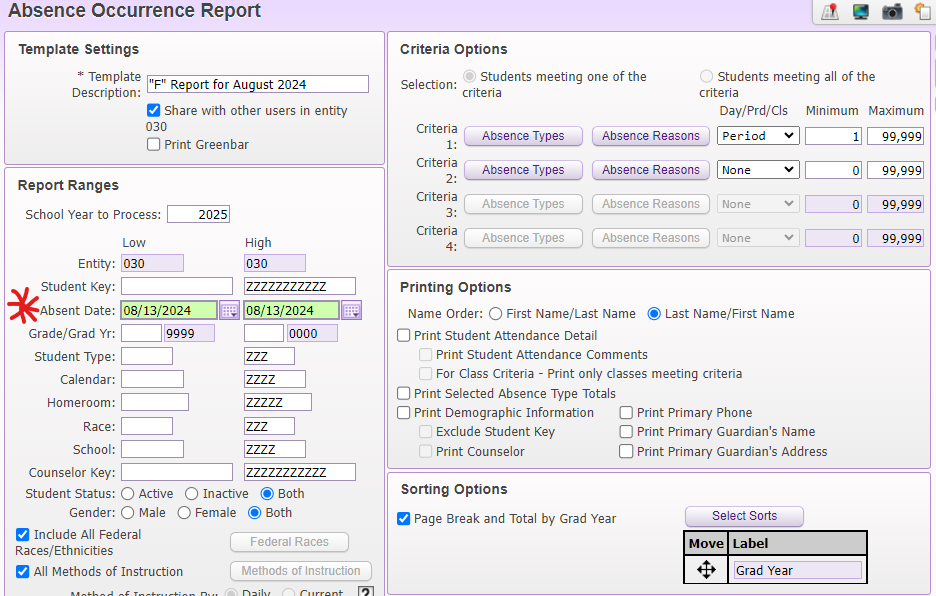
The "F" Report should be run daily at the start of the school year to identify which students have shown up. The date you are looking at can be changed by selecting your template from the list and then select the EDIT button to the right.
In the picture, the report will print any students who were marked with a "F" for Tuesday, August 13, 2024 only.
Staff can then adjust the entry dates for these students at the end of the day in the ENTRY/ WITHDRAWAL tab of the student's profile pages.
Tutorial Header: BEST PRACTICES FOR ATTENDANCE, Tutorial Image: , Tutorial Content:
Teachers should take attendance on every child that is scheduled into the gradebook.
If a student does not appear in the gradebook, they are not scheduled in the class and should report to the appropriate teacher.
If a student is scheduled in the class but is not there, the student should be marked absent, regardless of whether to student has reported to school for the first time or not.
Teachers should mark an "F" the first time a student reports to the class.
During the start of the school year, staff will be working to determine which students have reported for their first day and when that first day was. You can use an ABSENCE OCCURRENCE REPORT set up for the code "F" in Skyward.
This article will take you through the steps of setting up and...
Tutorial Header: PreK to 5th Grade Attendance Overview, Tutorial Image: , Tutorial Content:
Teachers with students in Pre-K through 5th Grade will take attendance twice a day.
Your homeroom students will be scheduled to you twice with an AM homeroom (Period 1) and a PM homeroom (Period 2). You will be responsible for updating the attendance for homerooms only in Skyward. The bell schedule pictured above shows how students earn their minutes for school attendance.
NOTE: all of your academic courses should be scheduled in Period 00. If you have an academic course scheduled in either Period 1 or Period 2 and the system is expecting attendance, this is an error. Please notify the SIS Director to get this corrected.
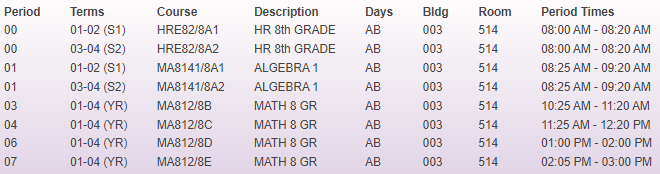
Secondary teachers will take daily attendance for each period that students are scheduled in their class.
The bell schedule varies between the different secondary campuses. The picture above shows the periods a MCMS teacher has students scheduled to her. She will be responsible for posting daily attendance for each of these periods in Skyward.
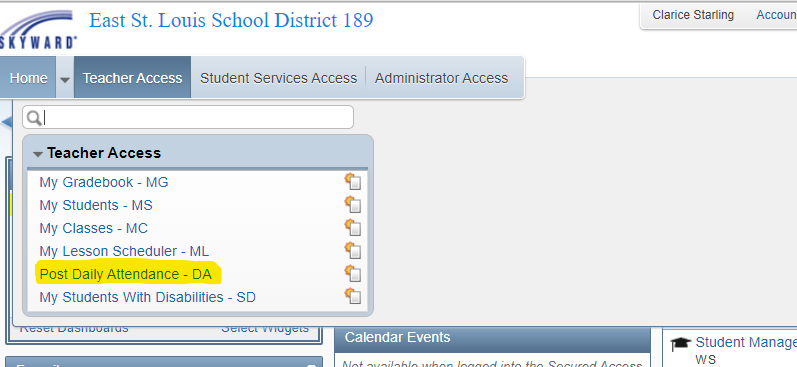
To post your daily attendance, you will be on the Educator Access Plus side of Skyward. Click on the TEACHER ACCESS button and then select the POST DAILY ATTENDANCE - DA option from the dropdown menu.
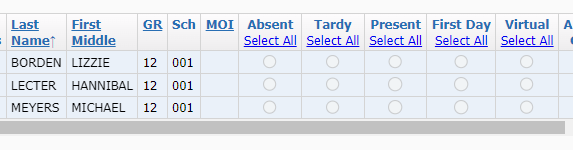
Once you have accessed the Post Daily Attendance area in Skyward, you will select the name of the class for which you are taking attendance. Click on the BY NAME option for that class and you will get a list of students in order by name to take attendance.
The default for attendance will be PRESENT unless you input another option. Mark any student whose name is showing but not present as ABSENT. Mark the appropriate fields for each student and then press SAVE to ensure it is posted.
FIRST DAY - you must mark this field for the first day that a student is in your class. This will help office staff determine what the entry date for a student should be for the year.
NOTE: even if all students are PRESENT, you will still need to save the entries for the attendance to post. Failure to do this will result in the office getting a notification that you have not taken attendance.
Tutorial Header: Updating for Tardy Students, Tutorial Content:
If you have posted attendance and marked a student as ABSENT, but then the student arrives late, you will have to update the record for that class.
You can reopen the attendance for that class and then click on the TARDY bubble for the student. Click SAVE when finished.
Changes can only be made to a student's record on the same day. If you failed to change an ABSENT to TARDY or if some other item needs to be updated, you will need to reach out to the attendance clerk for your school.
All teachers will take daily attendance in Skyward. The purpose of this article is to review this process.
Confirm you are trying to log in using the correct username and password.
Your username and password are the same as your computer login information, not your email account.
Tutorial Header: Confirm Your Account is Not Due for a Password Reset., Tutorial Content:
This needs to be done from a District PC on the District Network. This cannot be done from a Chromebook, a non-district computer, or while outside of the buildings.
Completely reboot the device if you are currently logged in.
At the windows login screen, enter your account information as normal. You will be prompted to set a new password if you are due for a reset. If you did have to reset your password, now that new password is the one you will use to log into Skyward.
Tutorial Header: New Staff Members, Tutorial Content:
If you are a new staff member, verify with your Department Head or Principal that a Skyward Access form has been submitted for access on your behalf. If you have not filled out a Skyward Request Form, you will have to complete this process before gaining access to the system.
Are you trying to log into Skyward but get an error message that your password is wrong?
THE MOST LIKELY CAUSE OF ISSUES RELATED TO LOGGING INTO SKYWARD ARE BECAUSE IT IS TIME TO RESET YOUR PASSWORD FOR LOGGING INTO A DISTRICT COMPUTER. THIS HAS TO BE DONE ON A DISTRICT COMPUTER THAT IS...
Tutorial Header: FIRST DAY Report, Tutorial Content:
The "F" for FIRST DAY report will identify students who have been marked for their first day of attendance for the new school year.
Each school has a report set up to track the counts of students marked for their first day.
To find your report, go to:
Office → Attendance → Reports →
Absence Occurrence Report AO → “F” for FIRST DAY
This report will track students marked for their first day from 8/11/2025 through 8/22/2025 & give a total for each grade level.
Highlight the name of the report and click the PRINT button.
This report will list the students and the day they are marked with the “F”, the first day of attendance. You would adjust the entry date for any student who was not marked for the first day of school.
Each day that you run the report, the TOTAL will update for each grade level.
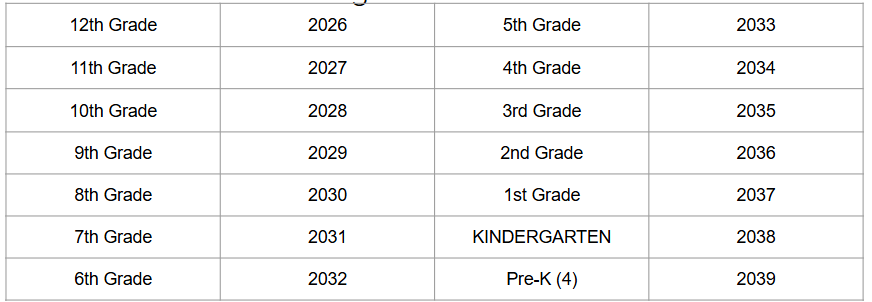
The Grad Years for each grade level are:
Tutorial Header: DAY SUMMARY, Tutorial Content:
This building-level report captures all attendance entries on a given day for all students in a given range (ie, a particular grade level).
To get to this report, go to Office → Attendance → Reports → Day Summary DS
, Tutorial Link URL: https://support.skyward.com/DeptDocs/Corporate/Documentation/Public%20Website/Tutorials/Software/WS_OF_AT_RE_AR_DR_DS_1801591_100_T.pdf, Tutorial Link Title: Details for Setting Up the DAY SUMMARY Report
This report is run under a specific student’s profile by navigating to the ATTENDANCE tab on their profile. You can print a detailed summary for a specific date range or the day summary for the student.
This report is helpful for providing documentation to the ROE for Chronic Truancy referrals as it can provide the detailed attendance data needed to support the referral.
Tutorial Header: ATTENDANCE DETAIL or SUMMARY, Tutorial Content:
This report can be set up to capture days missed or periods missed and can be run for individual students or a range of students.
Once you set up your specific report, you can run it from an individual student’s profile (QUICK PRINT) or from the Office/Attendance/Reports area.
, Tutorial Link URL: https://support.skyward.com/DeptDocs/Corporate/Documentation/Public%20Website/Tutorials/Software/WS_OF_AT_RE_AR_AD_929635_100_T.pdf, Tutorial Link Title: Details for Setting Up the ATTENDANCE DETAIL or SUMMARY Report
Tutorial Header: AVERAGE DAILY ATTENDANCE, Tutorial Content:
The Average Daily Attendance report is a very robust report that takes more time to set up, but once it is created, this report can give student level details such as:
Days Possible
Days Absent
Days Present
Days Unexcused
Days Excused
If the report is run for a date range of more than 10 days, the report will also list out students who are CHRONIC TRUANTS (unexcused absences for 5% or more of their possible days) and/ or CHRONIC ABSENTEES (absent for 10% or more of their possible days).
There is a separate article that covers the Average Daily Attendance report. See the link below to review that article.
*NOTE: The district office uses the Average Daily Attendance report to feed that dataset that is in the district's data dashboard.
, Tutorial Link URL: https://estl189.qbase-online.com/knowledge-base/21-skyward/53-average-daily-attendance, Tutorial Link Title: AVERAGE DAILY ATTENDANCE article
There are a variety of reports available in Skyward to review student attendance. It is possible to pull reports for a specific student, a range of students, or for the entire building. This article highlights recommended reports used from Skyward SMS 2.0 by the H.A.T. Officers in...
 , Tutorial Content:
 , Tutorial Content: