Tutorial Header: Setting Up the CCR Program in Skyward, Tutorial Image: , Tutorial Content:
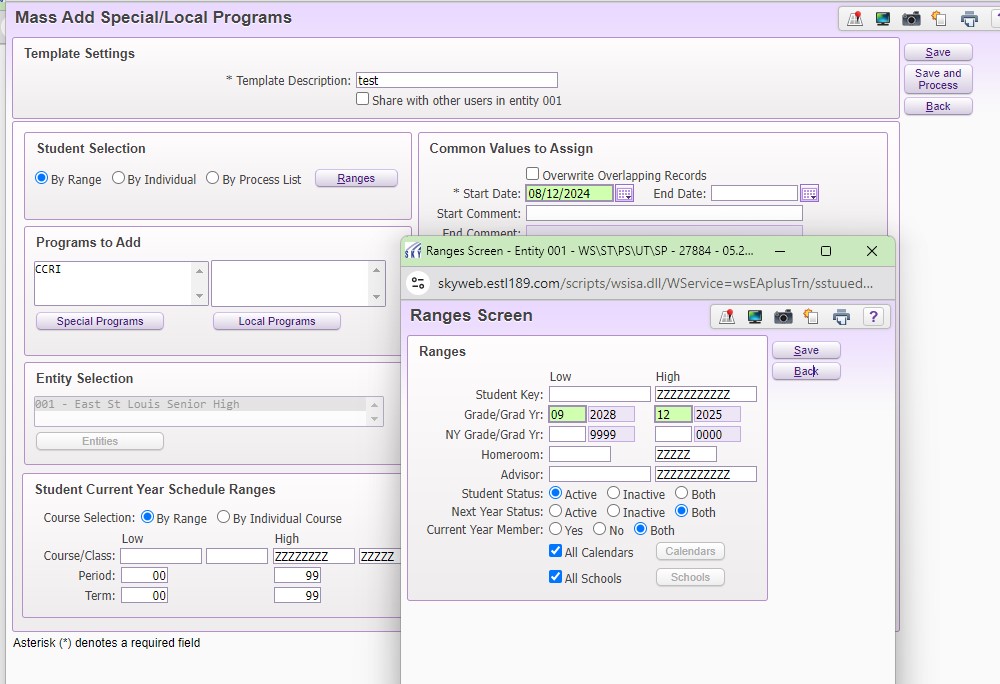
The CCR Special Program will be created for all high school students at the district level.
For those Skyward users with appropriate access, this will be done on the STUDENT MANAGEMENT side of Skyward by following this path:
Students -> Utilities -> Mass Add Special/ Local Programs
Once in this screen, select the grade level ranges or individual students you wish to add records to, and then insert the appropriate start date. From the options of SPECIAL PROGRAMS, select the CCRI field. Always select the SAVE/ SAVE & PROCESS button(s) after making any updates.
Tutorial Header: College & Career Readiness TRACKER, Tutorial Image: , Tutorial Content:
East St. Louis District 189 uses Skyward for all student information that is a part of state and federal reporting. East St. Louis Senior High and Gordon Bush Alternative will also implement SchooLinks for staff and students as part of their process.
Some metrics will be collected strictly in Skyward and some will be developed in SchooLinks as students are completing tasks. Any of the available SchooLinks metrics will be extracted and imported into Skyward.
The CCR Data Collection tracker spells out the various items that will be tracked in the different systems.
, Tutorial Link URL: https://docs.google.com/spreadsheets/d/1tJqz-gUuevgVCC8o8ekE0bD-DsIRHfENU1fzrHrEMFM/edit?usp=sharing, Tutorial Link Title: SY25 COLLEGE & CAREER READINESS Data Collection TRACKER
Tutorial Header: Available Skyward Entries, Tutorial Image: , Tutorial Content:
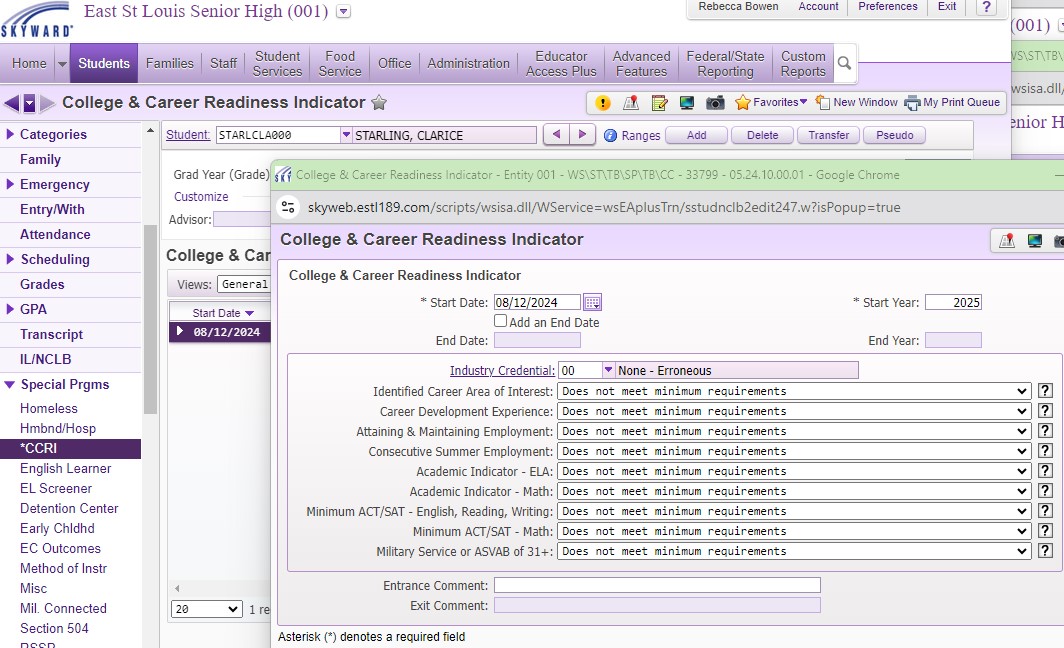
The CCR Data Collection is available in Skyward under SPECIAL PROGRAMS on the Student Management side of the platform.
Once a program record is created for a student, all metrics will default to DOES NOT MEET MINIMUM REQUIREMENTS until specific metrics are updated for a student. The screenshot presented shows the available metrics in Skyward that the CCR Team will update.
The attendance and GPA metrics that are a part of the data collection will automatically be available through other ongoing updates and entries to each student's record and do not have to be updated here.
Tutorial Header: Updating Individual Entries for a Student, Tutorial Image: , Tutorial Content:
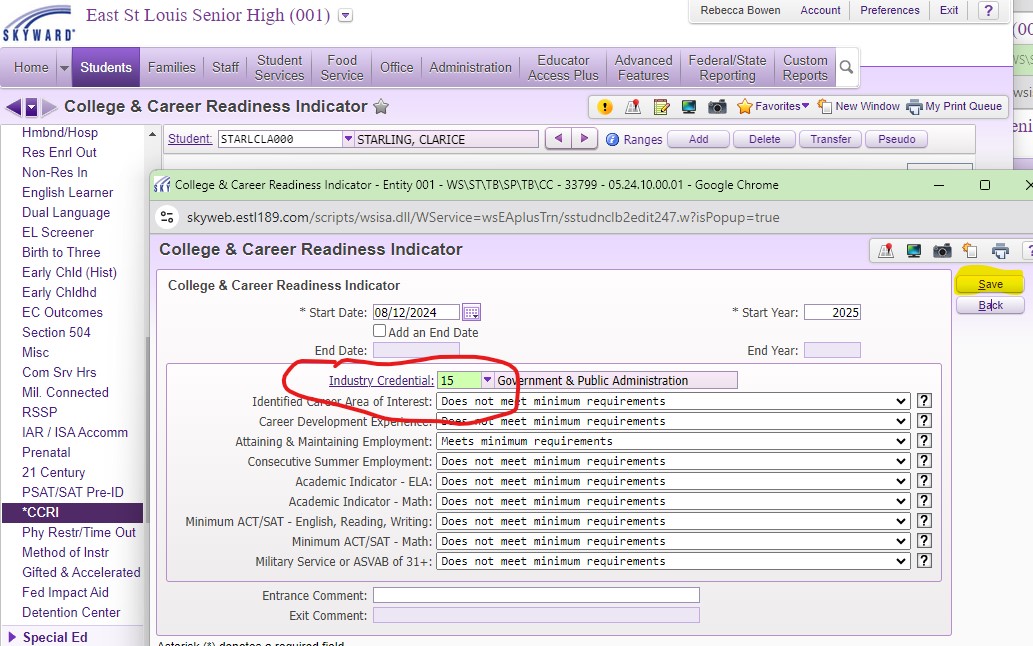
To update CCR entries for an individual student, go to the student's profile and select the *CCRI option under SPECIAL PROGRAMS. Highlight the desired school year record and select EDIT to pull up the options.
In this screen you can update specific metrics for the student and then select SAVE.
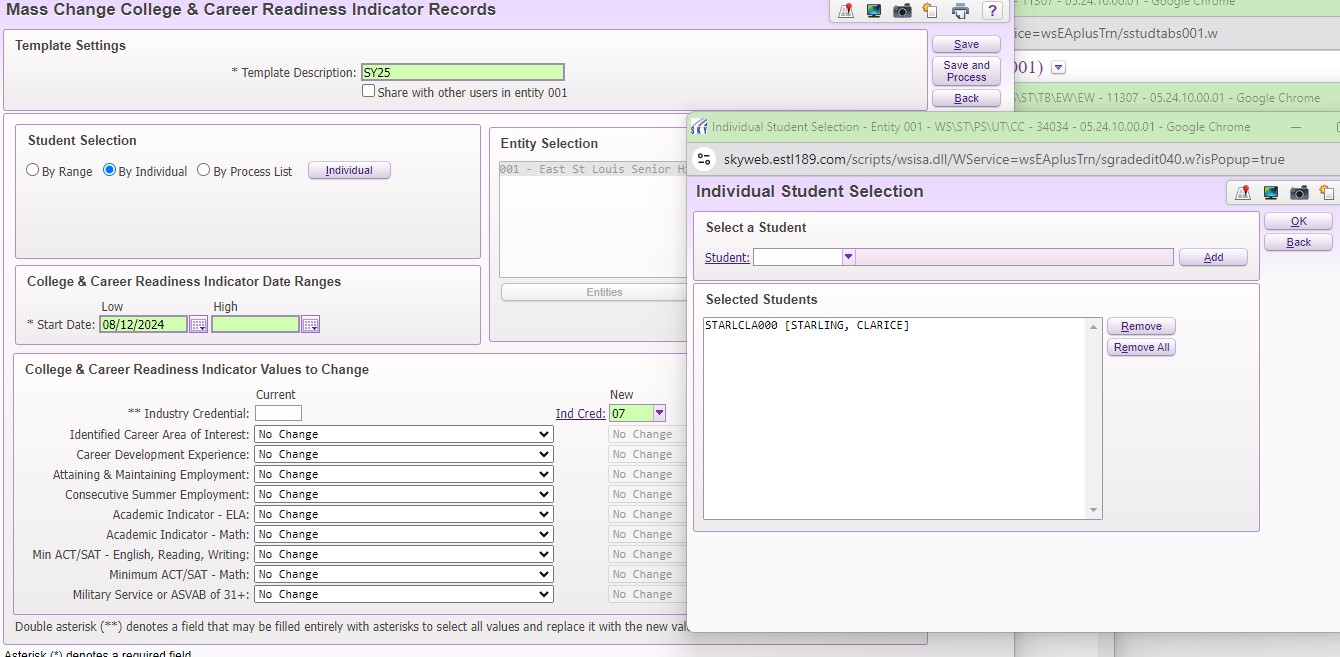
To update a specific metric for multiple students, the most efficient option will be to run a utility. This utility is accessed with the following path:
Students -> Setup -> Utilities -> Mass Change CCRI Records
Here, you will either create a new template or select and edit an existing template. Under STUDENT SELECTION, select the BY INDIVIDUAL OPTION and then select the names of the students you will be updating.
Once you have selected all the students, choose the field(s) that will be updated - whatever the current value is will be changed to the selected new value - and then hit SAVE & PROCESS.
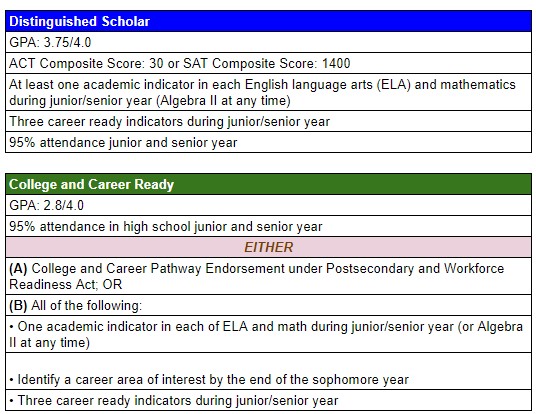
Beginning with the 2024-25 school year (SY25), the state of Illinois will include the College & Career Readiness (CCR) metric as part of the calculations for every high school's Illinois School Report Card. This metric will account for 2.5% of the score for determining a school's summative...
Each course identifies subjects & skills for specific standards that students must master in order to receive credit.
Students work at their own pace until mastery is achieved.
Course content will be flexible according to the needs of students.
No student will fail; they will continue to work until they achieve mastery.
Tutorial Header: Grading CBE Courses in Skyward, Tutorial Content:
Each CBE Course will be matched to a Standards-Based Gradebook.
Each CBE Course will identify subjects and skills to be mastered during the course.
Set up occurs in the ACADEMIC AREAS section with this path:
Educator Access Plus -> Gradebook -> Academic Areas
Tutorial Header: Academic Areas Setup, Tutorial Image: , Tutorial Content:
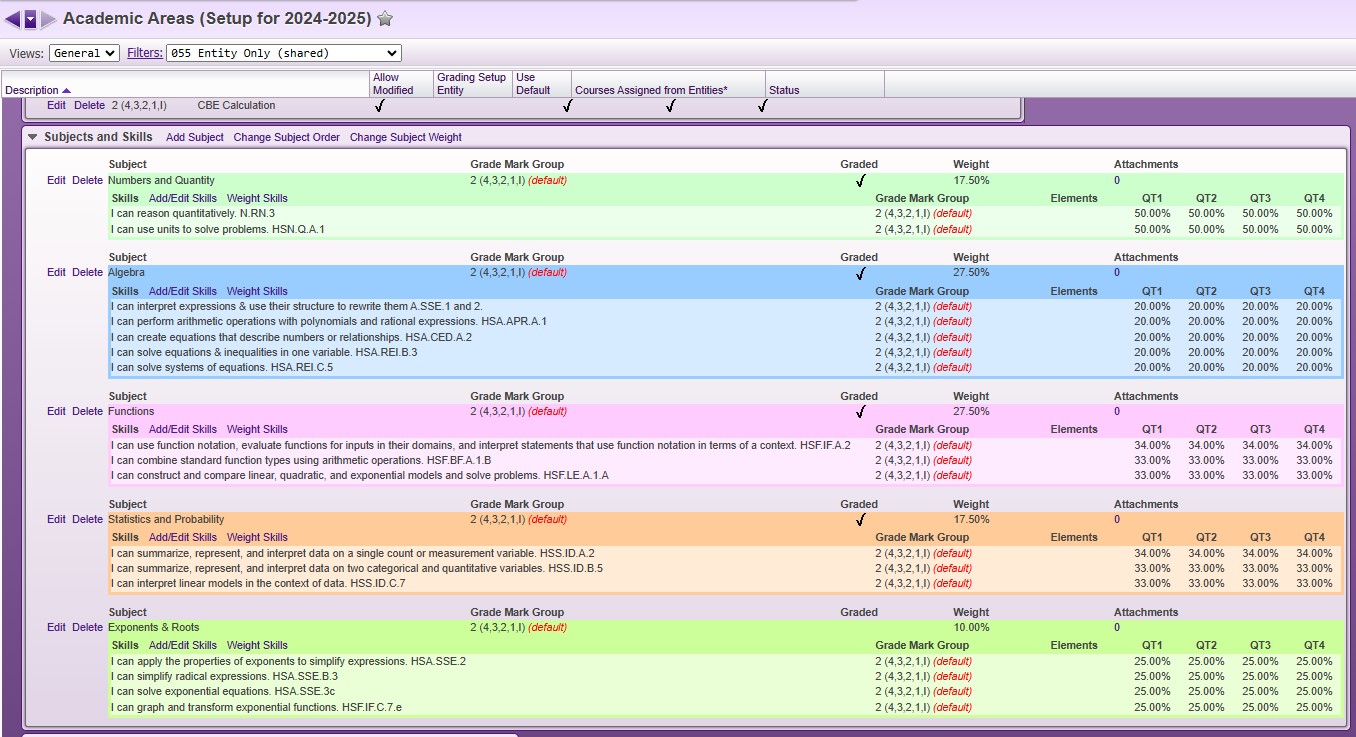
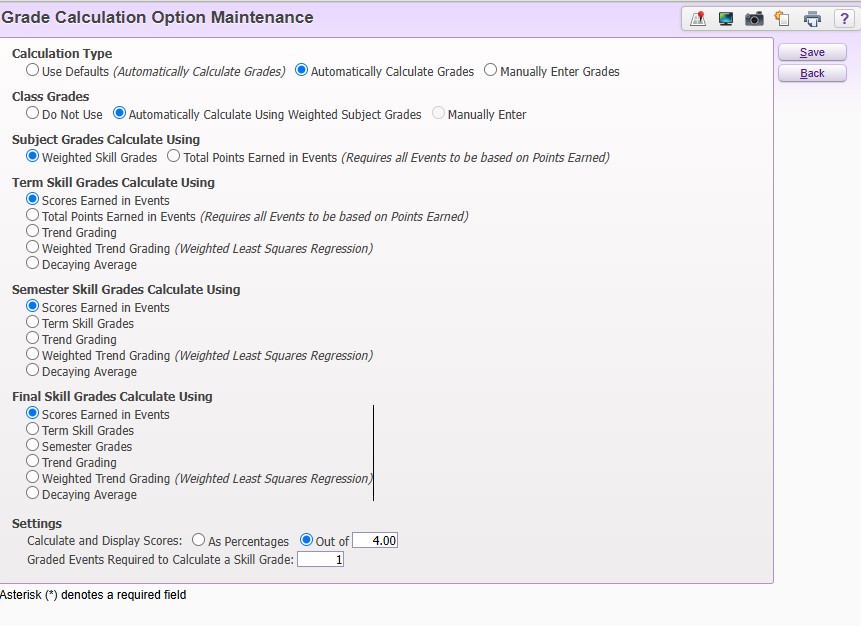
Identify SUBJECTS that cover the main topics in the course.These will be weighted based on priority in the course.
Within each subject, list out the relevant SKILLS a student must master within that subject. Those skills will also be weighted for the relevant quarters.
The CBE approach allows a student to work at their own pace so we have all skills available for each term.
Tutorial Header: Grade Marks Used, Tutorial Image: , Tutorial Content:
Grading will use performance levels instead of traditional letter grades.
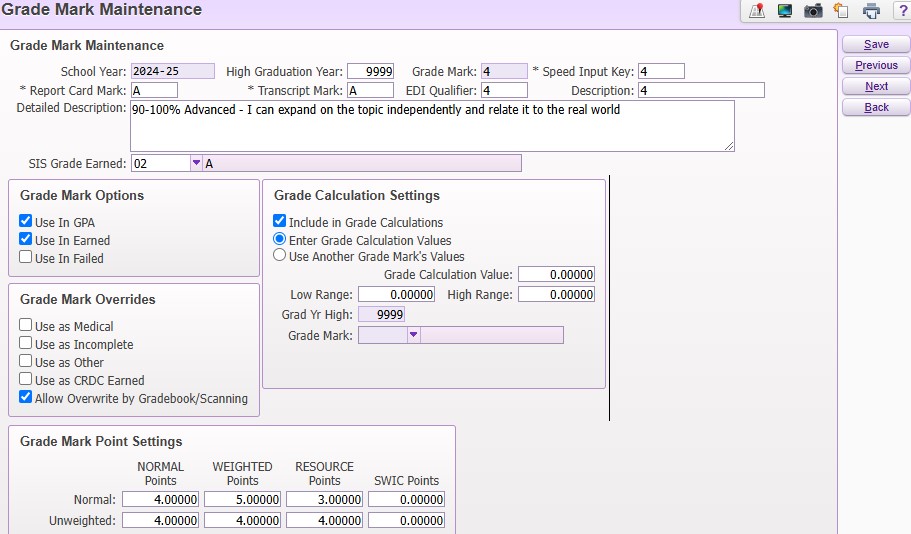
Students can be rated from 1 to 4 in order to receive credit; if a student has not demonstrated mastery at one of these levels, an INCOMPLETE will be assigned.
The next section will show how the grade marks are established in GRADE MARK MAINTENANCE for GPAs and transcripts. The picture shown in this section gives the setup for the highest performance level, a rating of a "4".
Tutorial Header: Grade Marks Setup, Tutorial Image: , Tutorial Content:
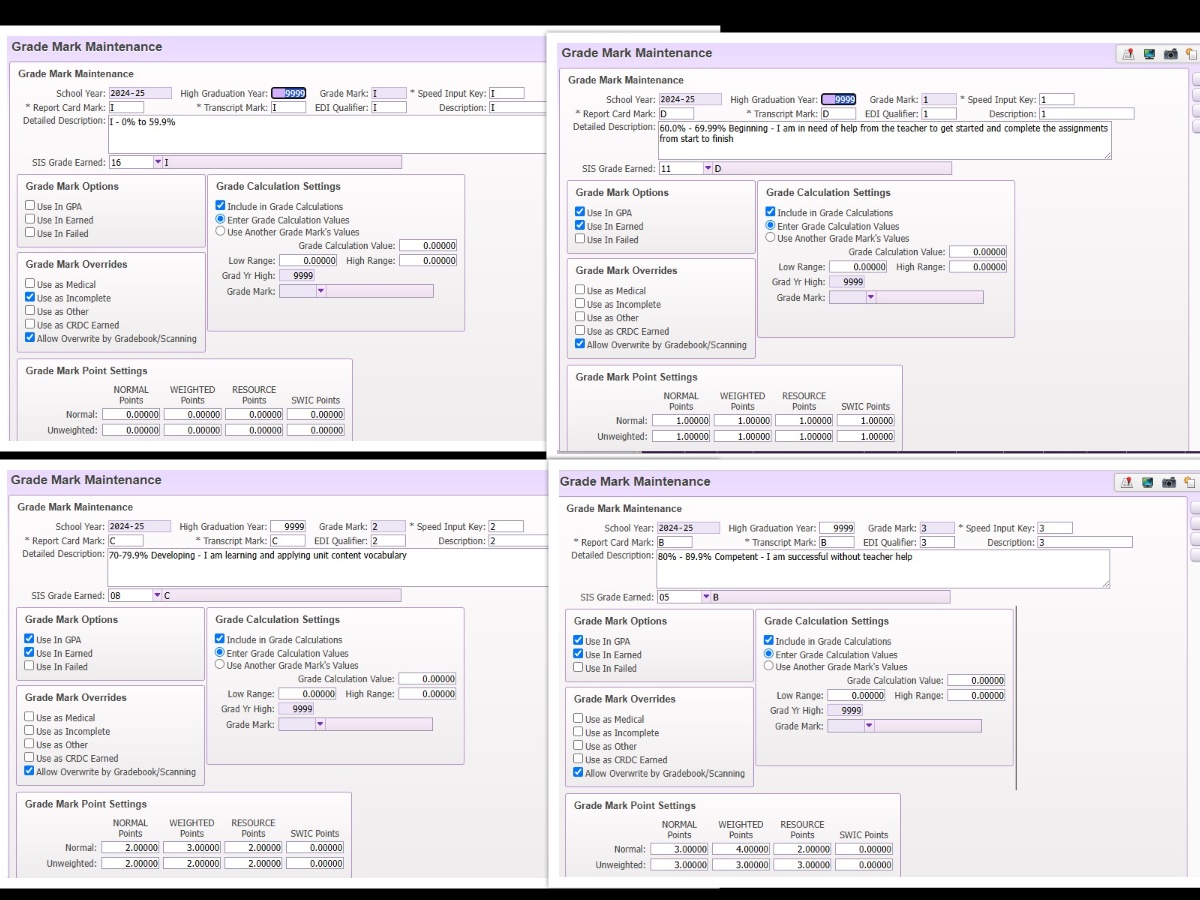
This image shows the Grade Mark Maintenance used for Levels 1 to 3, and for the "I" (Incomplete) grade mark.
Tutorial Header: GRADE MARK GROUPS, Tutorial Image: , Tutorial Content:
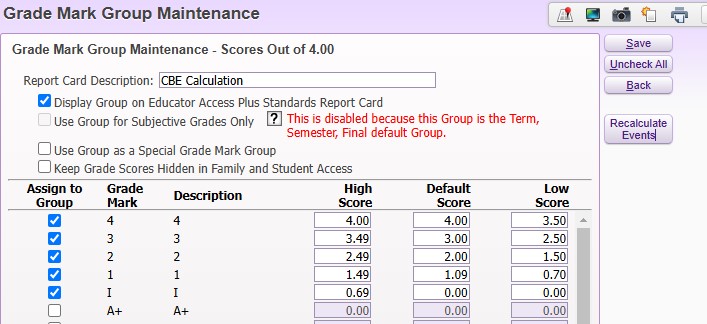
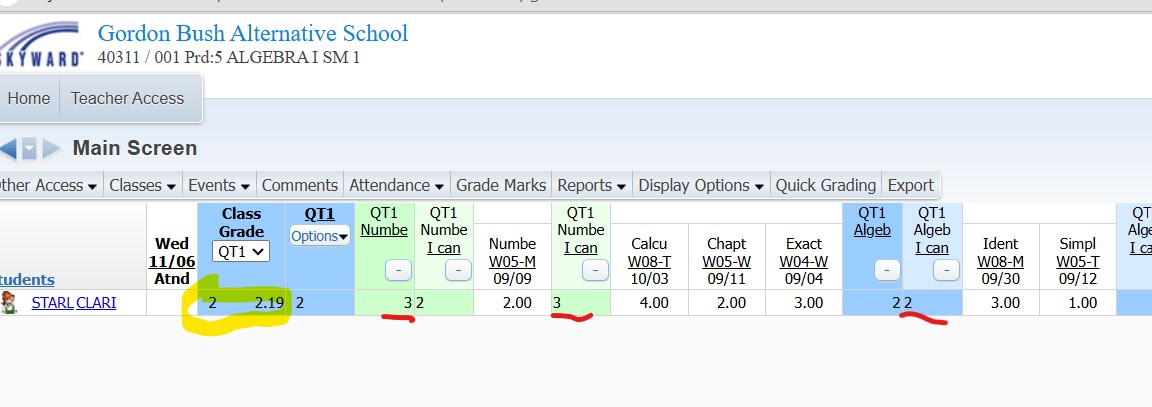
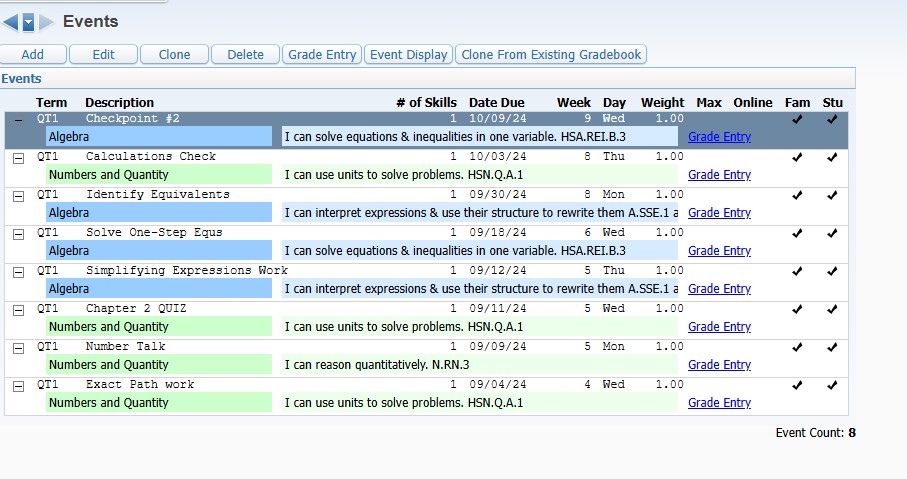
Setting up the GRADE MARK GROUPS allows the teacher to enter events for different skills and get an overall grade for the course.
A local decision was made in regards to earning an INCOMPLETE - students can also go back in time to earn a missing credit.
Prior to SY25, teachers were not consistently using events and grades were not calculating automatically.
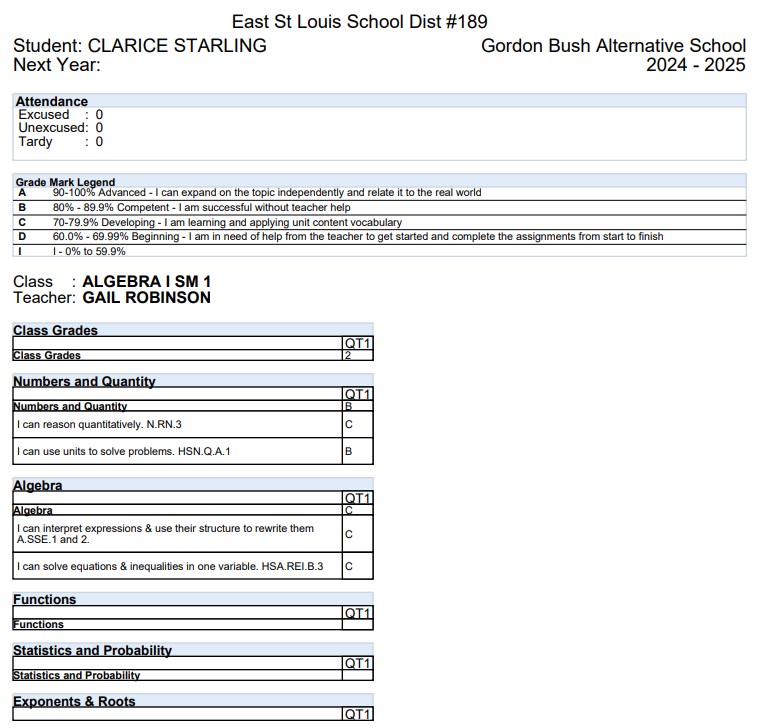
Teachers have the option to create progress reports and/ or report cards at any time using the REPORTS option in the gradebook.
The sample that follows only list the skills that have events tied to them.
All subjects are listed but grades are only given for those subjects that have events tied to skills.
QUESTION: would you keep the GRADE MARK LEGEND as shown or change it?
At East St. Louis District 189's alternative school, students take courses following a Competency-Based Education model. This article outlines the setup in Skyward SMS 2.0 for determining semester grades and assigning credits for those courses.
Confirm you are trying to log in using the correct username and password.
Your username and password are the same as your computer login information, not your email account.
Tutorial Header: Confirm Your Account is Not Due for a Password Reset., Tutorial Content:
This needs to be done from a District PC on the District Network. This cannot be done from a Chromebook, a non-district computer, or while outside of the buildings.
Completely reboot the device if you are currently logged in.
At the windows login screen, enter your account information as normal. You will be prompted to set a new password if you are due for a reset. If you did have to reset your password, now that new password is the one you will use to log into Skyward.
Tutorial Header: New Staff Members, Tutorial Content:
If you are a new staff member, verify with your Department Head or Principal that a Skyward Access form has been submitted for access on your behalf. If you have not filled out a Skyward Request Form, you will have to complete this process before gaining access to the system.
Are you trying to log into Skyward but get an error message that your password is wrong?
THE MOST LIKELY CAUSE OF ISSUES RELATED TO LOGGING INTO SKYWARD ARE BECAUSE IT IS TIME TO RESET YOUR PASSWORD FOR LOGGING INTO A DISTRICT COMPUTER. THIS HAS TO BE DONE ON A DISTRICT COMPUTER THAT IS...
 , Tutorial Content:
 , Tutorial Content:
 , Tutorial Content:
 , Tutorial Content:
 , Tutorial Content: